Manage prefetch settings
NilRead can be configured to retrieve archived images from external sources in advance of a scheduled patient visit. This ensures prior exams are available for comparison.
Prefetch is controlled by user-defined polices. Each policy is defined in terms of triggers and actions. Triggers specify conditions on which prefetch should be performed while actions specify the prefetch details. NilRead can be configured to query multiple MWL service class providers for scheduled workflow items associate with a specific modality, station name, and AE title. Alternatively, prefetch can be triggered by an imported study based on a study modality, data source, or age.
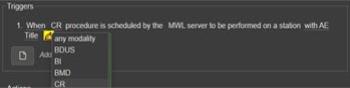
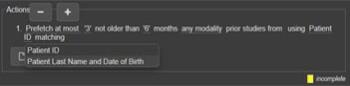
If a trigger condition is satisfied, priors will be prefetched based on the configured number of studies, age, modality, data source, and patient matching. For example, a policy could state that when a CR acquisition is scheduled on a specific device (or when a CR study is imported from a specific DICOM server), NilRead will prefetch a maximum of three CR studies, not older than six months, from a specific data source, and the studies will be selected by matching the patient name.
Note
Prefetch activities are logged and can be reviewed on the DICOM Activity page (see Monitor DICOM patient study transfers).
Set up prefetch
- Select Settings.
- Under Devices, select Prefetch.
See the next sections for details on configuring prefetch.
Prefetch settings
- In the Services area, define the prefetch settings.
- Enable If selected, prefetch is enabled.
- Modality Worklist Poll Period Frequency (in hours) to check the modality worklist. Select Poll to check the worklist immediately.
- Query Modality Worklist Items not older than Age (in days) of modality worklist items to include when checking the worklist.
- Prefetch Activation Frequency to run prefetch (check the modality worklist and fetch data). You can activate prefetch immediately or schedule it to run between specific hours. When immediate is selected, prefetch actions will be executed immediately when a worklist item is scheduled or a study is imported to NilRead which matches a policy trigger; otherwise, prefetch actions will be executed within the configured time range.
- Keep prefetch request records for Period (in days) to retain scheduled prefetched requests. If data cannot be accessed within this period, the requests will be removed from the system.
- Select Save.
Note
Select Reset to restore the default settings.
Add a prefetch policy
- In the Policies area, select Add.
- Enter the following information, then select Save.
Name
Policy name.
Comment
Policy description.
Enabled
If selected, the policy will be applied to NilRead data.
Triggers
Specify the triggers for the policy by adding one or more conditions. The policy actions will be triggered if any of the trigger conditions are satisfied.
- Select Add Condition.
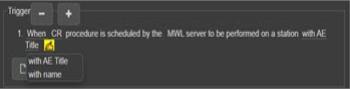
- Customizable areas are underlined and are highlighted when you hover over them. Click (or tap) a customizable area to edit it.
- To add an item, select a customizable area, then select +. To remove an item, select -.
- To delete a condition, select the first customizable area, then select
.
- To move a condition to a new position, select the condition, then select
.
Actions
Specify the actions that will occur if any of the policies triggers are satisfied. Actions are executed in the order listed in the policy.
- Select Add Activity.
- Customizable areas are underlined and are highlighted when you hover over them. Click (or tap) a customizable area to edit it.
- To add an item, select a customizable area, then select +. To remove an item, select -.
- To delete an action, select the action, then select
- To move an action to a new position, select the action, then select
Edit or delete a prefetch policy
- In the Policies area, select a policy.
- Select Edit. Modify the details, then select Save.
or
Select Delete.