Use the navigation map and magnification options
The red rectangle in the navigation map indicates the area of the image currently shown in the view-port.
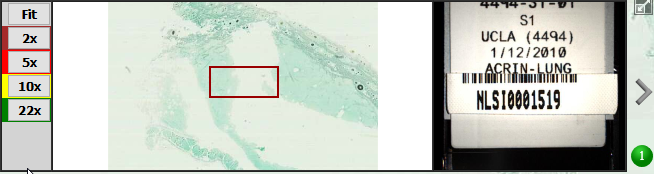
-
To focus on a point of interest, click (or tap) in the navigation map with a regular or 3D mouse. You can also use the arrow keys on your keyboard to select an area. The image is repositioned in the viewer to focus on the selected area.
-
To change the magnification for the image, select a magnification factor beside the navigation map. You can also use a 3D mouse to change the magnification. Select Fit to fit the entire sample in the image viewer.
-
The navigation map is updated when you change the magnification or use tools such as pan and rotate.
The following example shows a sample with a 10x magnification factor applied. The Caliper tool on the bottom-left of the image shows the current magnification factor. You can move the Caliper to a differentposition on the screen. Double-click (or touch and hold) the Caliper to return it to its original position.
